PostProcessors

PostProcessors are a way to quickly modify every pixel on the screen with WebGL fragment shaders. This can be useful to give your game a certain aesthetic or effect.

warning

PostProcessors are only supported in WebGL mode, this is the default mode for Excalibur but if you switch or fallback to 2D Canvas materials will not have an effect.

If you want to do per actor shaders check out Materials

Color Blindness​

Choosing colors that are friendly to players with color blindness is an important consideration when making a game.

There is a significant portion of the population that has some form of color blindness, and choosing bad colors can make your game unplayable.

The three most common forms of color blindness can be simulated or corrected. By default the ColorBlindnessPostProcessor corrects. The algorithm is originally sourced from http://www.daltonize.org/.

note

The color blindness correction is only an attempt to bump the colors into differentiable range. It is still best when designing to pick color blind friendly colors and to not use color to communicate information in your games without something else like a glyph. Remember, the best practice is to design with color blindness in mind.

Original​

Here is the original game with no postprocessing applied.
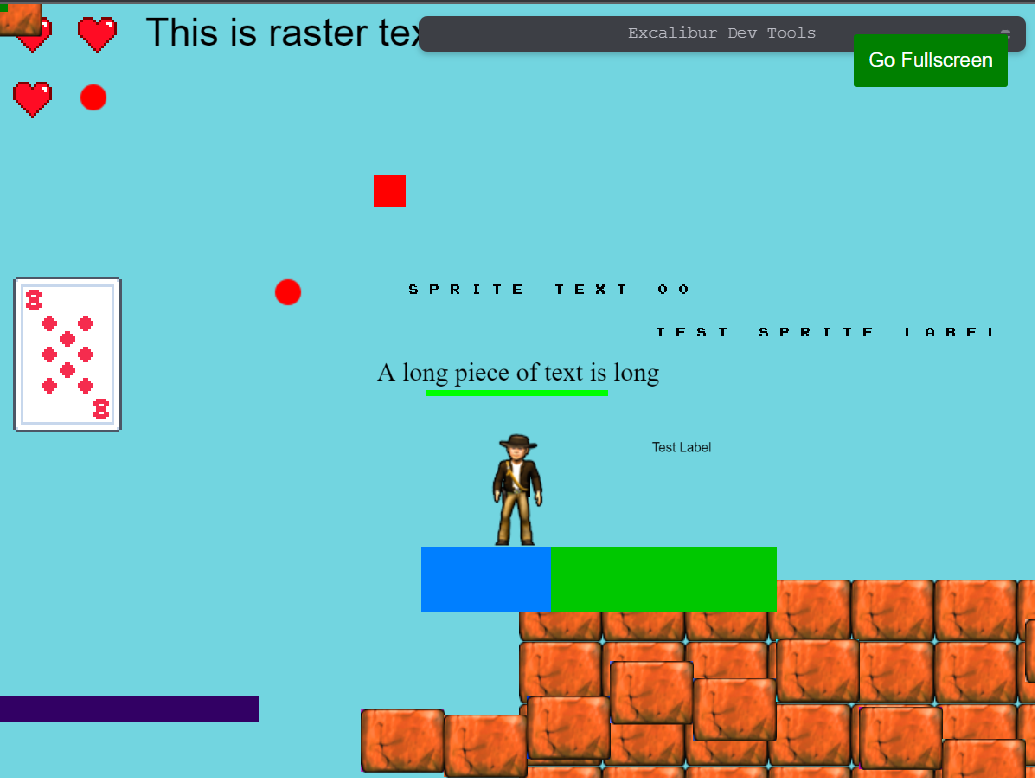
Original Game with no postprocessing

Simulation​

typescript
const game = new ex.Engine({...});
// simulate deuteranope
const colorblind = new ex.ColorBlindnessPostProcessor(ex.ColorBlindnessMode.Deuteranope, true);
game.graphicsContext.addPostProcessor(colorblind);
typescript
const game = new ex.Engine({...});
// simulate deuteranope
const colorblind = new ex.ColorBlindnessPostProcessor(ex.ColorBlindnessMode.Deuteranope, true);
game.graphicsContext.addPostProcessor(colorblind);

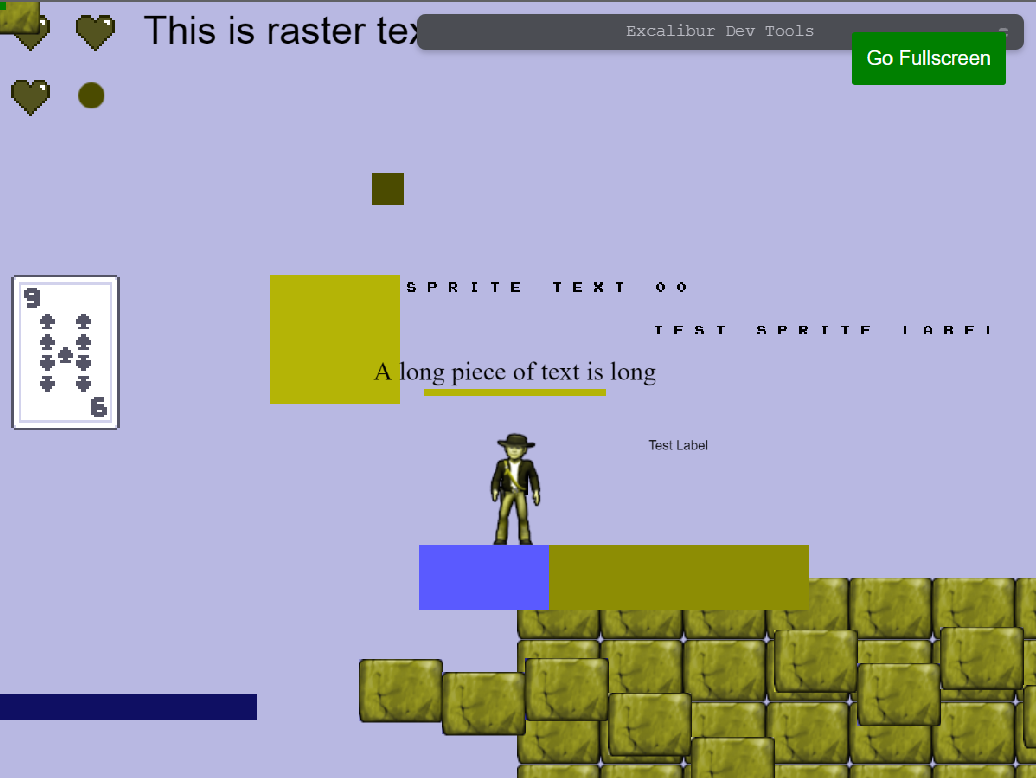
Deuteranope Color Blindness Simulated

Correction​

typescript
const game = new ex.Engine({...});
// correct deuteranope
const colorblind = new ex.ColorBlindnessPostProcessor(ex.ColorBlindnessMode.Deuteranope);
game.graphicsContext.addPostProcessor(colorblind);
typescript
const game = new ex.Engine({...});
// correct deuteranope
const colorblind = new ex.ColorBlindnessPostProcessor(ex.ColorBlindnessMode.Deuteranope);
game.graphicsContext.addPostProcessor(colorblind);

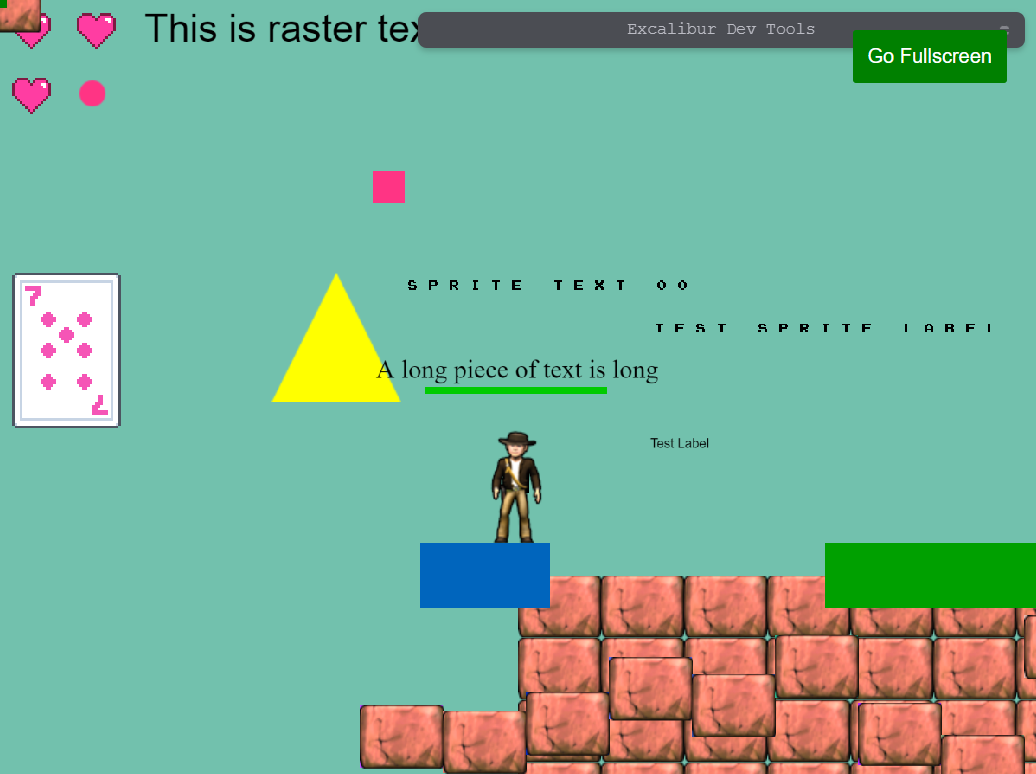
Deuteranope Color Blindness Correct

Custom Shader based Post Processors​

Post processors can also be use to produce some interesting custom effects.

Implement process(source, destination) to render the screen (source) into destination, typically with a ShaderPass or ShaderPipeline. ShaderPipelinePostProcessor is a shortcut that builds one from fragment sources. The only things that come predefined are:

  1. v_uv representing the current UV from [0, 1]
  2. u_image which is the texture representing the screen pixels

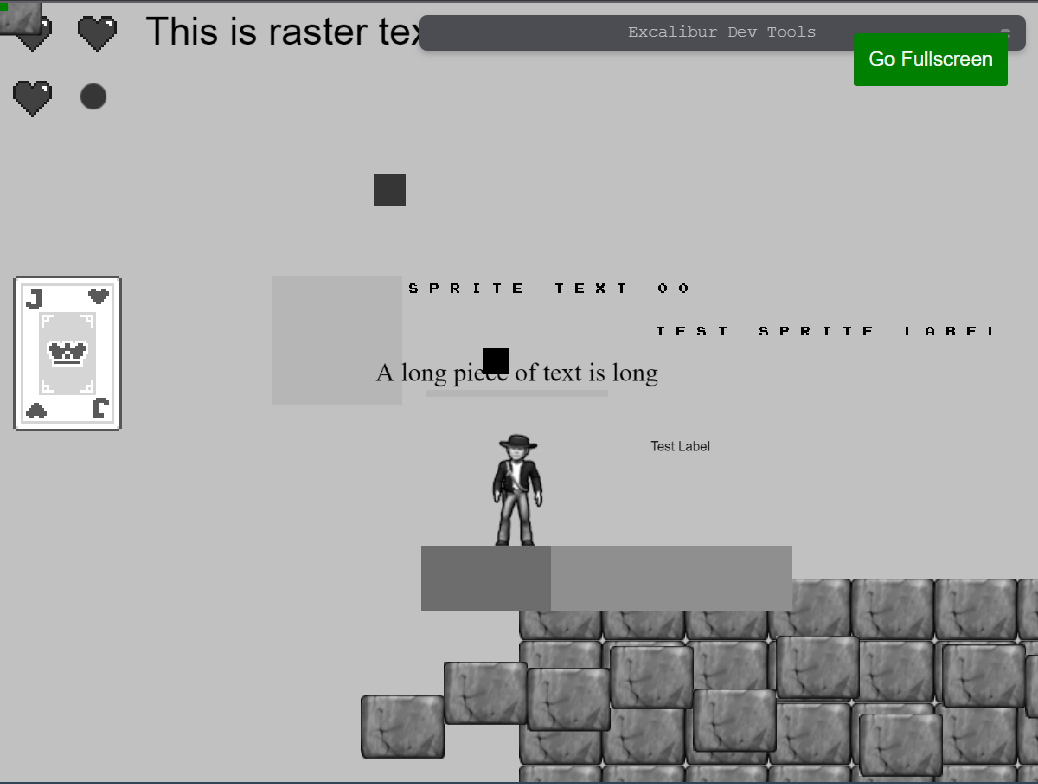
In this example we can make the entire game gray scale:

typescript
const grayscale = new ex.ShaderPipelinePostProcessor({
name: 'grayscale',
passes: [`#version 300 es
precision mediump float;
// our texture
uniform sampler2D u_image;
// the uvs passed in from the vertex shader.
in vec2 v_uv;
out vec4 fragColor;
void main() {
vec4 tex = texture(u_image, v_uv);
float avg = 0.2126 * tex.r + 0.7152 * tex.g + 0.0722 * tex.b;
fragColor = vec4(avg, avg, avg, 1.0);
}`]
});
game.graphicsContext.addPostProcessor(grayscale);

Gray Scale PostProcessor